








Scheduled flag changes
Contents
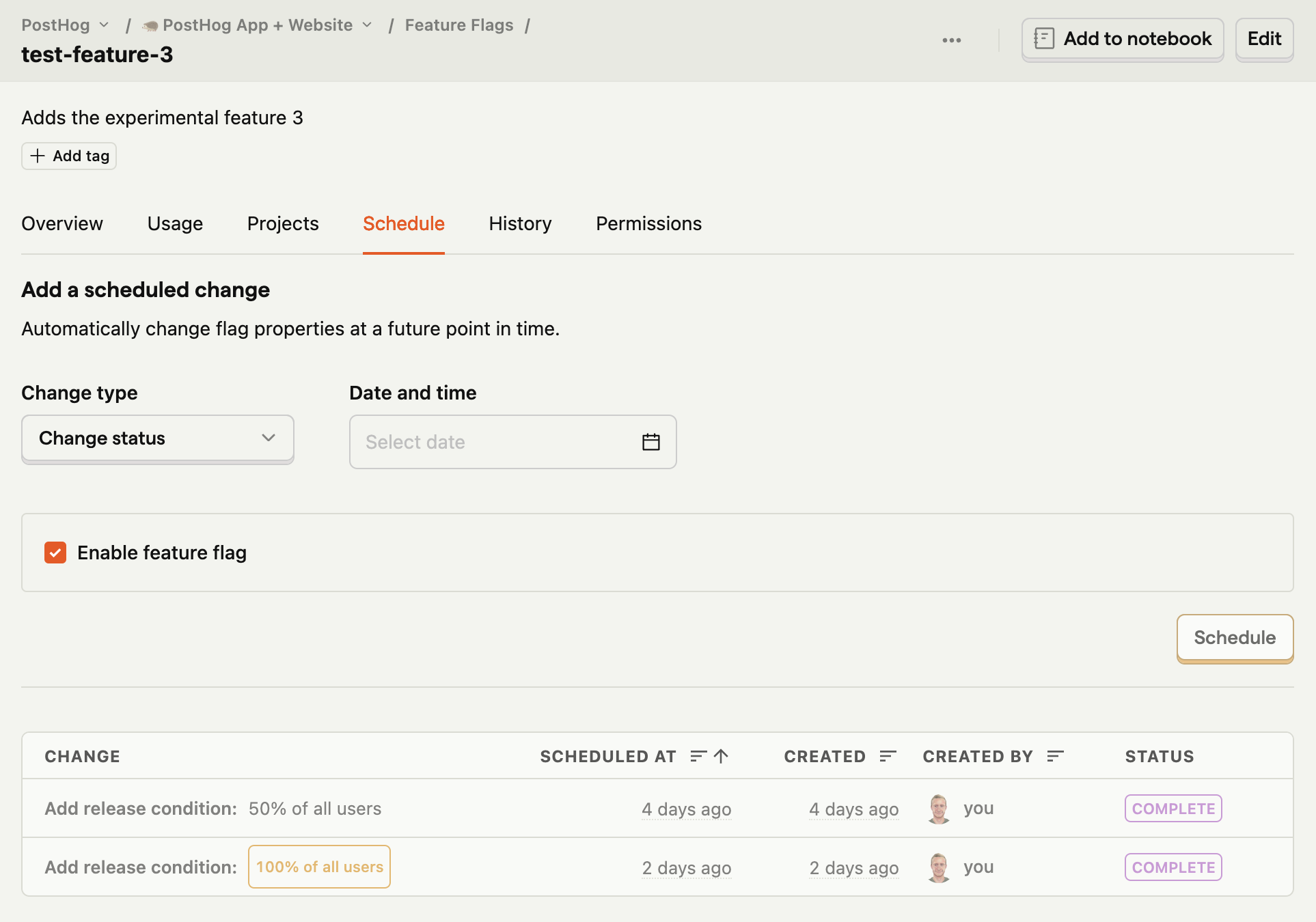
Scheduling feature flag changes enable you to automatically change flag properties at a future point in time. For example, you can schedule an initial release of a flag for internal testing, then enable it to the beta users group 2 days later, and finally, roll it out to 100% of the users in 2 weeks.
This is also useful if your releases fall outside normal working hours. For example, a ticket sale starting at midnight.
How to schedule a change:
- Navigate to the relevant feature flag.
- Select the Schedule tab.
- Under Change type:
- Select Change status to enable or disable your flag at a scheduled time.
- Select Add condition to append rollout conditions to your flag at a scheduled time.
- Select Update variants to update the variant keys, descriptions, payloads, or rollouts.
- Select the Date and time of your scheduled change using the date picker.
- Optionally, use the Repeats dropdown to set a recurrence interval. You can choose from Daily, Weekly, Monthly, Yearly, or Custom (cron) for flexible scheduling with a cron expression. When the change type is Change status, the dropdown also includes Paired schedules presets (see below). When a repeat option is selected, an Ends date picker appears to set an optional end date for the recurring schedule.
- Click Schedule.
Scheduled changes appear below the form, grouped into an Active & upcoming section and a collapsible History section.
Edit a scheduled change
To edit an existing scheduled change, click the pencil icon on any active schedule card. This opens a modal where you can modify:
- Date and time or next run for the scheduled change
- Repeat interval – switch between one-time, daily, weekly, monthly, yearly, or custom cron
- Cron expression – when using custom cron scheduling
- End date – for recurring schedules
- Enable/disable status – for Change status schedules
Only changed fields are saved. Editing a paused schedule does not automatically resume it.
Recurring schedules
Recurring schedules repeat a scheduled change at a regular interval. You can choose from daily, weekly, monthly, or yearly recurrence, or use a custom cron expression for more flexible scheduling. You can optionally set an end date for any recurring schedule.
Recurring schedules are supported for the following change types:
- Change status – toggle the flag on or off on each recurrence
- Update variants – replace the variant configuration on each recurrence. Each run overwrites the previous variant setup, so any manual changes made between runs are replaced.
Recurring schedules are not supported for the Add condition change type because it appends a new condition on each run, which creates duplicates.
Paired schedule presets
When the change type is Change status, the Repeats dropdown includes a Paired schedules option group. Selecting a paired preset creates two complementary cron schedules – one to enable the flag and one to disable it – in a single action.
The available presets are:
| Preset | Enable schedule | Disable schedule |
|---|---|---|
| Business hours | 0 9 * * 1-5 (9:00 AM, Mon–Fri) | 0 17 * * 1-5 (5:00 PM, Mon–Fri) |
| Weekdays only | 0 0 * * 1 (midnight Monday) | 59 23 * * 5 (11:59 PM Friday) |
| Custom pair | User-defined cron | User-defined cron |
With Custom pair, you provide your own enable and disable cron expressions.
After selecting a preset, click Schedule pair to create both schedules. You can optionally set an Ends date to limit how long the paired schedules run.
Custom cron expressions
For more flexible scheduling, select Custom (cron) from the Repeats dropdown and enter a standard 5-field cron expression. A human-readable preview of the schedule is displayed below the input (e.g., "At 09:00 AM, Monday through Friday").
Cron expressions use the format: minute hour day-of-month month day-of-week
Here are some common examples:
| Expression | Description |
|---|---|
0 9 * * 1-5 | Every weekday at 9:00 AM |
0 0 * * * | Every day at midnight |
0 9 * * 1 | Every Monday at 9:00 AM |
0 18 * * 5 | Every Friday at 6:00 PM |
0 0 1 * * | First day of every month at midnight |
Note: Only standard 5-field cron expressions are supported. Six-field expressions (with seconds) are not allowed.
Copy scheduled changes across projects
When copying feature flags across projects, you can optionally include pending scheduled changes. This is useful when you want to replicate your entire flag configuration, including future automated changes, to another project.
When copying schedules:
- Only pending (unexecuted) scheduled changes are copied
- All schedule properties are preserved, including timing, recurrence, payload, and end dates
- Schedules that have already executed are not copied to avoid duplicating completed actions
To copy schedules, check the Copy schedules option in the Projects tab when copying a flag. The checkbox shows the number of pending schedules available to copy.